STL and OBJ are the two file formats you run into first in any 3D printing or CAD workflow — and sooner or later you end up with both versions of the same model in a folder, wondering which one to keep, send, or upload. The difference between them is bigger than most people expect: one stores nothing but bare triangles, the other carries materials, textures and structure. This guide walks through what each format actually contains, when each one is the right call, and how to convert between them in your browser for free.
The 30-second answer
If you’re in a hurry, here is the whole article compressed into three lines. The rest of the page explains why this is the right rule of thumb — and where the exceptions hide.
OBJ = geometry + materials + textures. Use it for visualization, texture work and exchange between 3D tools.
Need to switch? Convert STL ↔ OBJ free in your browser — no upload, no size limits.
Where the two formats come from — and why it still matters
Both formats were born in the late eighties, but on opposite sides of the 3D world, and that origin story explains almost every practical difference you’ll run into today.
STL (short for stereolithography) appeared in 1987 alongside the very first commercial 3D printer. Its job was narrow and mechanical: tell the machine what surface to solidify, layer by layer. For that, all you need is the shape — so an STL file describes a model as a soup of triangles, each one just three corner points and a normal vector. That is genuinely the entire format. No colors, no materials, no textures, no object names, no scene structure. Nothing that a printer wouldn’t care about survived the design.
The minimalism goes further than most people realise: STL doesn’t even store units. The file says a cube is “10 across”, but not whether that means millimetres, inches or metres. Every program that opens an STL simply assumes a unit, which is why models occasionally import 25.4× too big or too small — a classic symptom of a millimetre-assuming slicer meeting an inch-exporting CAD package. Once you’ve seen that bug, you never forget it.
OBJ came out of Wavefront Technologies at almost the same time, but from the opposite direction — computer graphics and animation, where a model’s job is to be looked at. So on top of vertices and faces, OBJ stores texture coordinates (UVs), vertex normals, smoothing groups and named objects. Most importantly, it can reference a companion .mtl file that defines materials, plus image files that give the surface its color. A scanned bridge deck keeps its photo texture; a building export keeps its material zones and arrives as named parts instead of one welded lump.
That richness has a practical price, though. A textured OBJ model is really three or more files — the .obj, the .mtl, and the textures — and they only work as a set. Forward just the .obj and the receiver gets a grey, naked mesh. It’s such a common failure mode that we wrote a separate piece about it: How to Send a 3D Model to a Client.
STL vs OBJ side by side
Here is the comparison in one table — limited to the things that actually matter in engineering work, rather than the stuff that matters to a game studio.
| What you care about | STL | OBJ |
|---|---|---|
| Stores | Triangles only | Mesh + UVs + normals + groups |
| Colors / materials | No | Yes (via .mtl) |
| Textures | No | Yes (external images) |
| Units | None (assumed) | None (assumed) |
| File count | Always one | Up to three+ (.obj, .mtl, textures) |
| Typical size (same mesh) | Smaller (binary) | Larger (text) |
| 3D printing / slicers | Universal standard | Accepted, extras ignored |
| Visualization / rendering | Poor fit | Good fit |
| Long-term archiving | Good (simple, stable) | Good (plain text) |
One row worth pausing on: file size. STL exists in two flavours — binary (compact, the default from almost every modern exporter) and ASCII (human-readable text, roughly 4–5× larger for the same mesh). If you ever receive a suspiciously huge STL, it’s almost certainly ASCII, and converting it to binary costs nothing.
Which format for which job
For 3D printing: STL, almost always
A printer only needs the shape. Color and texture data are dead weight that the slicer throws away on import, so OBJ’s extra features buy you nothing at the build plate — while its larger file size and multi-file structure quietly work against you. Every slicer ever written opens STL, and there are no companion files to lose in an email thread. The exceptions are multi-color and full-color printing processes, where OBJ (or the newer 3MF) carries the color information STL simply can’t hold.
For CAD, BIM and visualization: OBJ
The moment the model is meant to be looked at rather than printed, the logic flips. Materials survive, textures survive, and named groups mean a building arrives as doors, walls and slabs instead of one fused blob. Blender, 3ds Max, SketchUp and practically every renderer import OBJ cleanly. If you’re weighing OBJ against FBX for this kind of work — hierarchy, animation, Autodesk pipelines — we’ve covered that match-up separately in FBX vs OBJ for Engineering Models.
For the web and AR: honestly, neither
If the model is headed to a browser — a client review link, an AR preview on a phone, an embed on your site — both formats are the wrong tool. That’s GLB territory: one compact binary file with geometry, materials and textures baked in, designed for fast web loading. When that’s your destination, convert STL straight to GLB and skip OBJ entirely.
What conversion changes — and what it can’t
Converting between STL and OBJ is lossless for geometry. Both formats describe the same kind of triangle mesh, so the shape comes through the conversion untouched, vertex for vertex. What changes is the metadata around it:
- STL → OBJ: nothing is lost; you gain the ability to add materials and UVs later. The file gets larger, because OBJ is text.
- OBJ → STL: the geometry survives, but materials, textures and group names are stripped — STL has nowhere to put them. The file usually gets smaller.
Convert STL ↔ OBJ free — right in your browser
Both directions, binary and ASCII STL, files up to 250 MB, with a built-in 3D preview. Your file never leaves your device — the conversion runs locally, so NDA-bound models stay private. No sign-up, no watermarks, no daily limits.
Open the STL ↔ OBJ Converter →How to convert STL to OBJ (three ways)
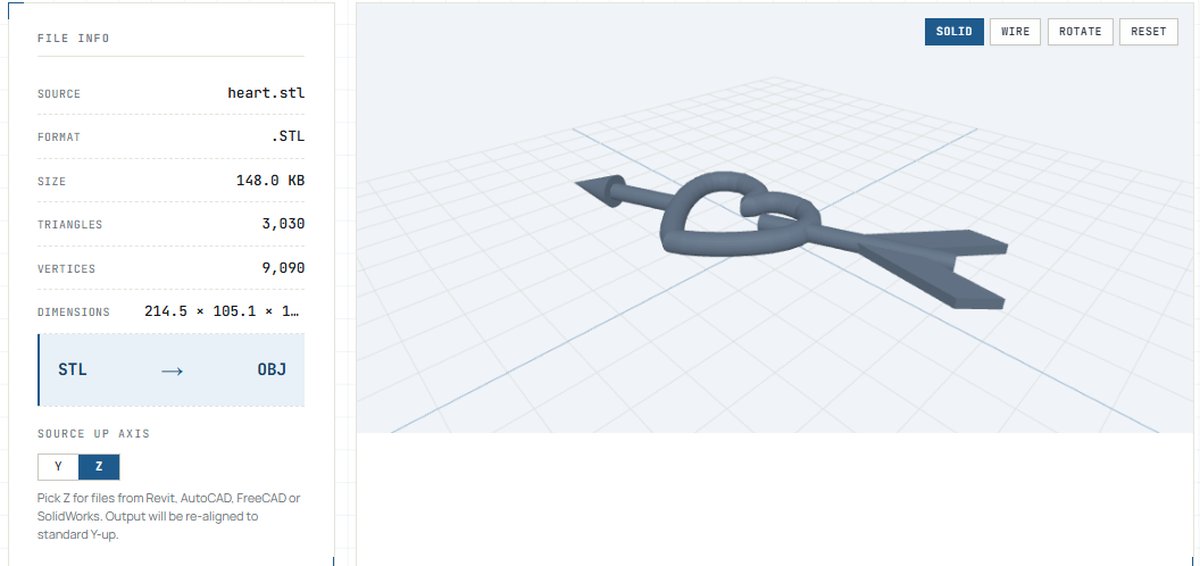
- In your browser (fastest). Open the STL ↔ OBJ converter, drop the file, check the mesh in the 3D preview, download the result. Works in both directions, and nothing gets uploaded.
- In Blender. File → Import → STL, then File → Export → Wavefront (.obj). Free and reliable — but a ~300 MB install and a dozen clicks for a one-off conversion.
- In FreeCAD. Open the STL, select the mesh, File → Export, choose OBJ. Handy if FreeCAD is already part of your workflow.
Whichever route you take, look at the result before sending it on — our free online 3D viewer opens STL, OBJ and GLB straight in the browser, no install needed.
Frequently asked questions
Is STL or OBJ better for 3D printing?
Does converting STL to OBJ lose quality?
Can an OBJ file hold colors and textures?
Why does my STL import at the wrong size?
Which is the smaller file, STL or OBJ?
Can I convert STL to OBJ without installing software?
All converters and the 3D viewer mentioned in this article are free, browser-based tools built by the Buildref team — your files are processed locally and never leave your device.