Sooner or later every 3D workflow that touches the web runs into the same pair of extensions: .gltf and .glb. They look like two competing formats, the internet argues about them accordingly, and choosing wrong feels risky. Here’s the twist: they aren’t two formats at all. This guide explains what actually separates GLB from glTF, when each one earns its place — and how to turn the OBJ or STL files you already have into web-ready GLB, free, in your browser.
The 30-second answer
In a hurry? Here’s the whole story in three lines — the rest of the page explains the why, and where the edge cases live.
GLB (.glb) = everything packed into a single binary file. For sharing, web viewers and AR.
Have an OBJ or STL? Convert OBJ ↔ GLB or STL → GLB free in your browser — no upload.
One format, two containers
The confusion starts with the name. glTF — “GL Transmission Format” — is a specification by the Khronos Group, the same consortium behind OpenGL and Vulkan. It was designed in the 2010s to do for 3D what JPEG did for images: one compact, universal format that anything can display, without an import step, without a plugin, without asking what software the other side owns. People genuinely call it “the JPEG of 3D,” and for once the marketing line is accurate.
That specification can be written to disk in two ways, and that’s the entire GLB-versus-glTF debate:
- .gltf is the loose version: a human-readable JSON file describing the scene, next to a .bin file with the geometry, next to the texture images. Three or more files that must travel together.
- .glb is the packed version: the exact same data, byte for byte the same capabilities, zipped into one binary file.
So the question is never “which format is better” — it’s the same format. The question is which container fits the job in front of you. If you’ve read our STL vs OBJ comparison, this will feel familiar: it’s the same single-file-versus-file-set trade-off, except this time both options keep materials and textures.
GLB vs glTF side by side
| Worth knowing | .gltf | .glb |
|---|---|---|
| File count | 2–3+ (JSON + .bin + textures) | Always one |
| Readable in a text editor | Yes (JSON) | No (binary) |
| Hand-editable | Yes | Not practically |
| Materials & textures | Yes | Yes |
| Animations | Yes | Yes |
| Risk of losing pieces | Real (like OBJ + .mtl) | None |
| Web viewers & AR | Works | Works, preferred |
| Email / chat attachment | Awkward | Perfect |
| Typical size (same model) | Marginally larger | Marginally smaller |
Notice what’s not in that table: any difference in what the model can contain. Geometry, PBR materials, textures, animations, scene hierarchy — both carry all of it. The trade-off is purely about packaging.
When the loose .gltf earns its place
Text-based files have one superpower: you can open them. A .gltf is plain JSON, which means a developer can change a material color, rename a node or fix a texture path in any code editor, without opening a 3D program at all. Build pipelines like it for the same reason — assets can be diffed in version control, textures can be swapped by replacing a file, and nothing needs re-exporting.
If that paragraph doesn’t describe your work, you don’t need the loose version. In engineering practice, .gltf is the format of the people building 3D web experiences — not of the people who just need to hand a model to someone.
When GLB is the obvious choice (spoiler: usually)
For everyone else, GLB wins on the strength of a single word: attachment. One file that contains everything — geometry, materials, textures — and opens instantly in a browser viewer, drops into PowerPoint, previews in Windows Explorer, and feeds Android’s AR Scene Viewer directly. Nobody writes back asking where the textures went, which regular readers will recognise as the eternal OBJ-and-its-.mtl problem — GLB simply cannot have it.
That’s also why GLB has become the de-facto standard for client review. Instead of mailing a STEP or DWG that the client can’t open, you send one .glb (or a link), and they orbit the model on their phone. We’ve written a whole walkthrough on that workflow in How to Send a 3D Model to a Client.
Getting a GLB out of the files you actually have
CAD and BIM tools rarely hand you a GLB directly — what you have on disk is usually an OBJ from a visualization pipeline or an STL headed for a printer. The conversion is the easy part:
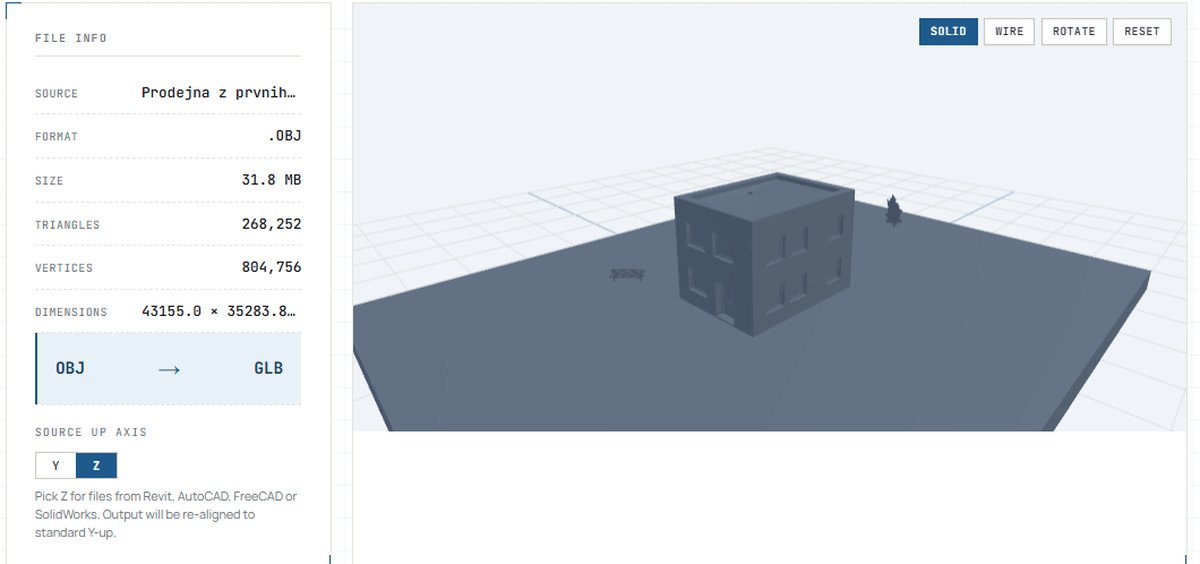
- In your browser (fastest). Drop your file into the OBJ ↔ GLB converter — it keeps materials and works in both directions, so you can also unpack a GLB you’ve received back into OBJ. For print files, the STL → GLB converter does the same trick. Both run locally: nothing is uploaded, no account, no size games.
- In Blender. Import your mesh, then File → Export → glTF 2.0 and pick “glTF Binary (.glb)” in the format dropdown. Reliable, but a heavyweight detour for a one-off conversion.
- Check the result. Whatever route you take, drag the output into our free 3D viewer before sending it on — thirty seconds of looking beats an embarrassed follow-up email.
OBJ ↔ GLB, free — right in your browser
Both directions, materials preserved, with a built-in 3D preview. Your model never leaves your device — the conversion runs locally, so NDA-bound work stays private. No sign-up, no watermarks, no daily limits.
Open the OBJ ↔ GLB Converter →Frequently asked questions
Is GLB the same as glTF?
Does GLB keep materials and textures?
Can I convert a GLB back to OBJ?
Is GLB good for 3D printing?
Why is my GLB smaller than the source OBJ?
How do I open a GLB file without installing anything?
All converters and the 3D viewer mentioned in this article are free, browser-based tools built by the Buildref team — your files are processed locally and never leave your device.